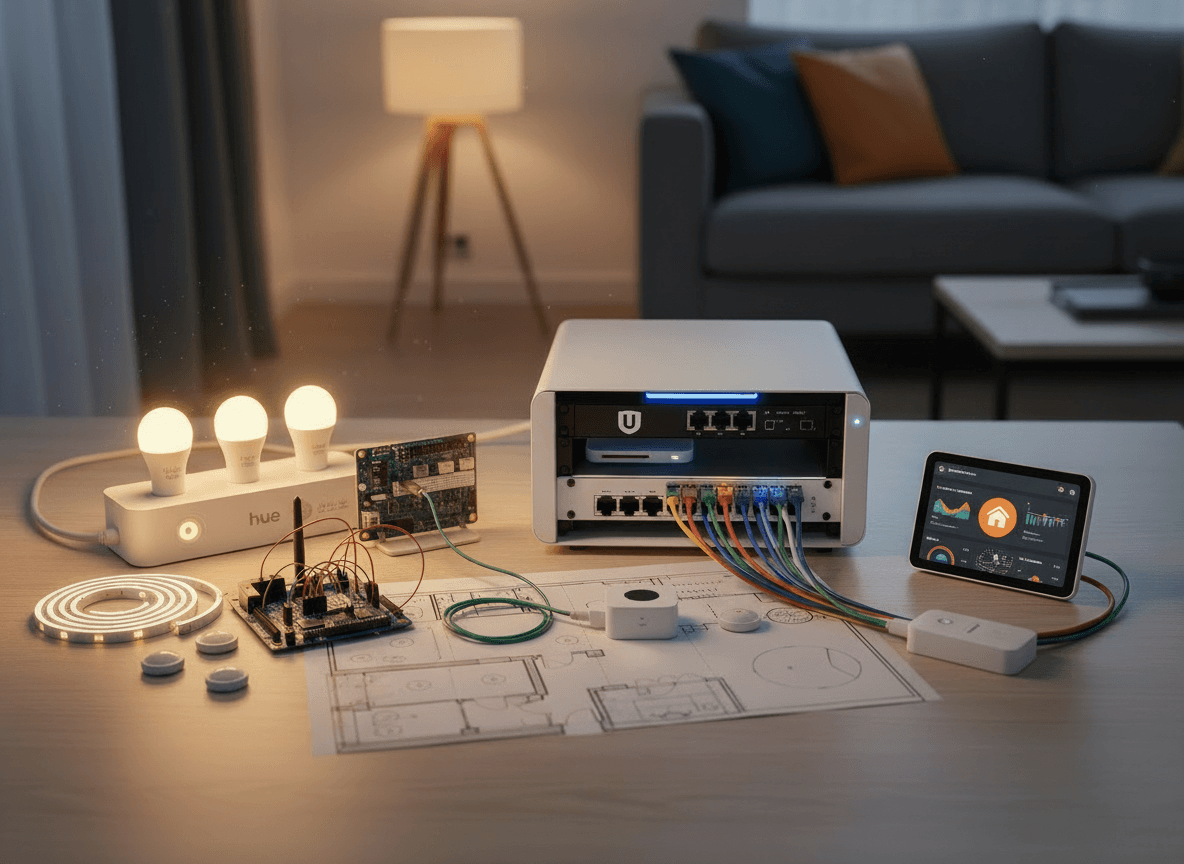
When we moved into our new house, I knew that I wanted to invest some time into setting up smart home and networking tech. In our previous flat, I had been running some smart home devices, first just using Philips Hue, and then with Home Assistant, but I intentionally kept it rather small.
We did not own our previous flat and so it was difficult making some more permanent changes. It also did not make sense to invest into special networking gear when all we really needed was a simple router that does wifi.
For the new house, I am running Home Assistant OS (HAOS) on a Raspberry Pi, use Tailscale to access my instance when I am out of the house, and installed Ubiquiti gear to make build up our home network.
My Smart Home Journey
The Start: Philips Hue
Before I migrated over to Home Assistant, I started out with just a Hue Bridge and a simple Philips Hue setup. Then, I integrated non-Philips light bulbs and power plugs (Ikea, Ledvance) into my setup. Next, I ran Home Bridge on my Raspberry Pi to control all these devices with Apple Home.
This setup allowed me to do simple automations like turning on certain lights in the evening or switching off the lights in our wardrobe when my wife goes to bed.
More than that was really not necessary when we were living in our flat in Munich.
When it became clear that we were moving into a house, I became interested in expanding this setup. I wanted to add temperature and humidity sensors, cameras, power monitors, leak sensors, and thermostates. To be able to control all these devices, I had to upgrade my control software.
Moving to HAOS
I chose to upgrade to Home Assistant because it is completely open-source, very actively developed, supports thousands of devices (basically anything), and I heard great things about it.
I decided to install HAOS on my Raspberry Pi and followed the official guide which was quite easy. I also bought a Sonoff Zigbee dongle (check compatibility first!). Then, I had to reconnect all the devices to the Sonoff dongle. At first, I was using the Zigbee integration in Home Assistant called Zigbee Home Assistant (ZHA).
Zigbee
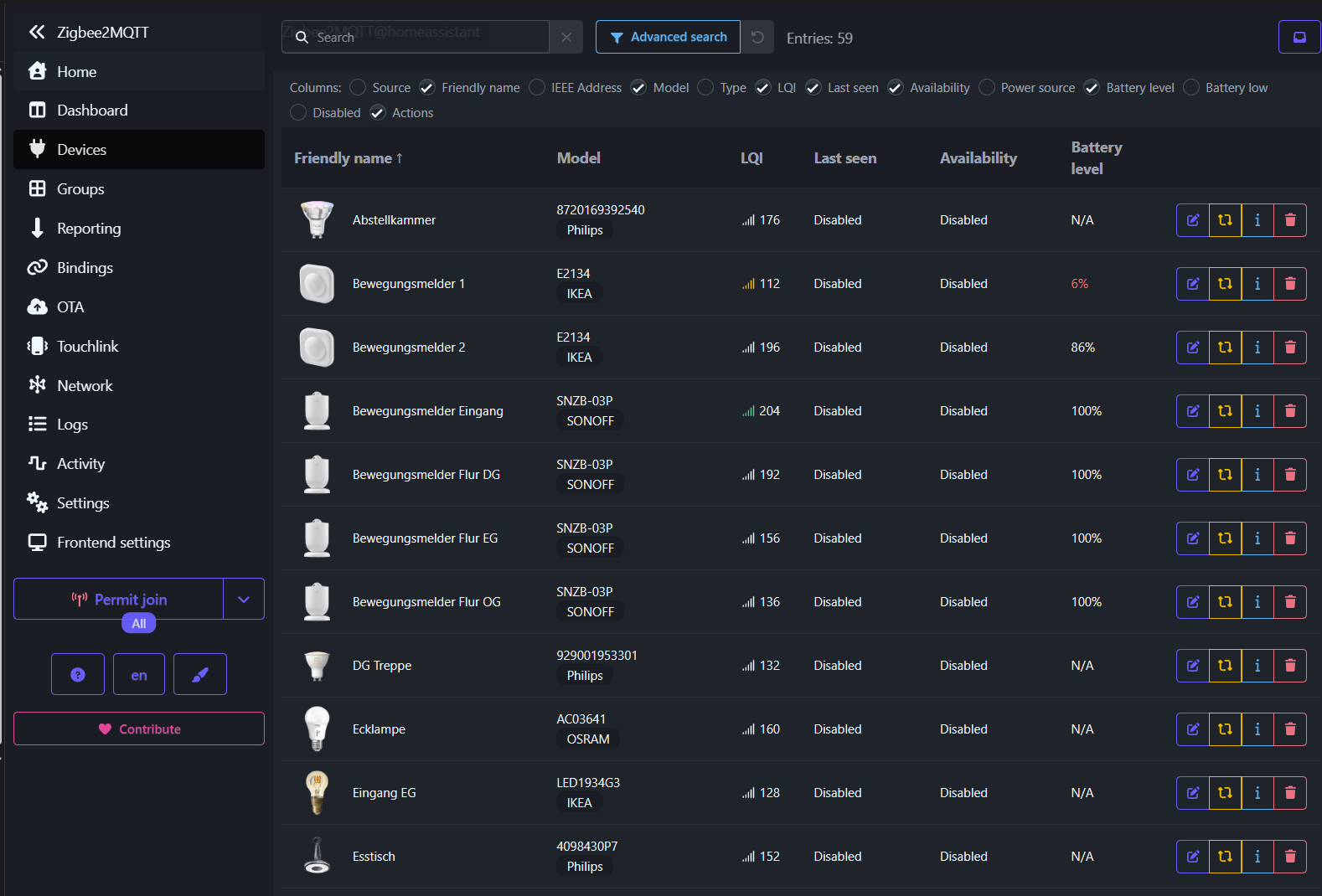
To save you some time: If you are a technically sophisticated user, which I assume you are if you read this blog, then you should immediately start with Zigbee2MQTT. It integrates a lot more devices and gives you more configuration options for your devices.
If you are using the same Sonoff dongle as me, you will have to flash the firmware using the Sonoff dongle flasher. There are tutorials on how to do this and the exact steps depend on the exact version of the dongle that you have. Your LLM of choice will help you do this: I used Gemini Pro and it navigated me flawlessly through the process.
Finally, I had to reconnect all my devices again but have been very happy with my Zigbee network since then. I have around 60 devices and the network is very stable.
Matter
Zigbee is the past and many new devices now use the Thread / Matter standard for communication. I have not that much experience with such devices yet as most of my devcies run on Zigbee but I can still give you some helpful advice: Do not yet buy any Ikea Matter lightbulbs. I have some, they are placed quite close to my Thread router (my HomePod), and I had to reset them every day. It was so bad that I had to replace them with Zigbee bulbs.
Mobile App
Home Assistant has a mobile app for iOS and Android. I use it daily and I like it a lot. It’s flexible, reliable, and it integrates quite well into the iOS Shortcuts app so that you can create powerful automations or widgets.
On the Go
By default, you cannot use the mobile app when you are not connected to your home network. The Home Assistant instance is not exposed to the internet - which is a good thing! To access my Home Assistant instance from outside my house, I use Tailscale. Tailscale is a “VPN” service (the underlying technology is VPN but it has nothing to do with the VPN services you might know) that allows you to build up your own virtual network and connect different devices to it.
Devices on the same network can communicate with each other as if they would be on the same local physical network. Tailscale is amazing: it abstracts away all the complexity so that all you have to do is authenticate your device.
After you setup the Tailscale app on your Home Assistant instance and on your phone, you can access the Home Assistant dashboard through the URL that Tailscale will assign to it. If you use that URL to connect to your instance in your mobile app, you will have access regardless if you are at home or on the go.
Home Network
In our previous flat, we were using the modem from our internet provider (Pyur) together with a FritzBox 7530 for the Wifi network. The modem from our IP also could do Wifi but it was so bad and inconsistent that we had to buy another router and chose the FritzBox as a good allrounder.
This setup worked well for our flat with occasional problems with the Wifi that were fixed by restarting the FritzBox router. The most annoying thing was when the modem was having problems and we had to restart that as well.
Pyur modems - as probably most IP provided basic modems - are just slightly above trash tier. We were unable to disable their Community wifi and the UI was lagging. The processor was just not good enough the handle the software.
Our Setup
When we moved into our house, I wanted something better. I wanted something that was reliable, extendable, and probably a bit overkill for a residential home.
So I chose Ubiquiti.
Our setup includes:
- A cloud gateway with an integrated network video recorder and storage for the cameras.
- A PoE switch to power multiple devices.
- Multiple access points for all our floors (some U6+ APs and one swiss army knife).
- Security cameras for outside.
- A smart door bell (G4 Door Bell Pro).
The setup was great. We have fiber at our home and first, I connected the fiber modem provided by our new IP (Telekom). Then, I connected the cloud gateway to the modem and with some help from the Telekom forum, I was able to configure it so that our router correctly authenticates with our provider via PPPoE.
For the other devices, there was no real setup involved. All I had to do was connect the APs and cameras to the cloud gateway with a PoE switch in between and they were automatically discovered.
For our doorbell, we had to choose a wifi doorbell since installing an ethernet cable was not possible. The setup was done with the Ubiquiti Connect app and painless.
My Verdict
I do not want to sound like a shill, but it has been better than I imagined. The Unifi console is great and shows so much information to optimize the Wifi coverage. We now have great Wifi everywhere and I have not felt the need to connect an ethernet cable when I was working on my laptop anywhere in the house.
The cameras work reliably and I can view the video feed from anywhere. The footage is stored locally on an SSD in the cloud gateway. If I want to extend the storage, I can do so by swapping the SSD.
And the best thing is: I do not have to pay for a subscription.